
You must have Admin permissions at organisation level to be able to perform this task.
1. Open Settings
Click Settings in the bottom-left corner of Simana’s navigation menu. This expands an additional menu with settings options.
If the navigation menu is hidden, open it first using the Simana logo in the bottom-left corner
2. Select your organisation
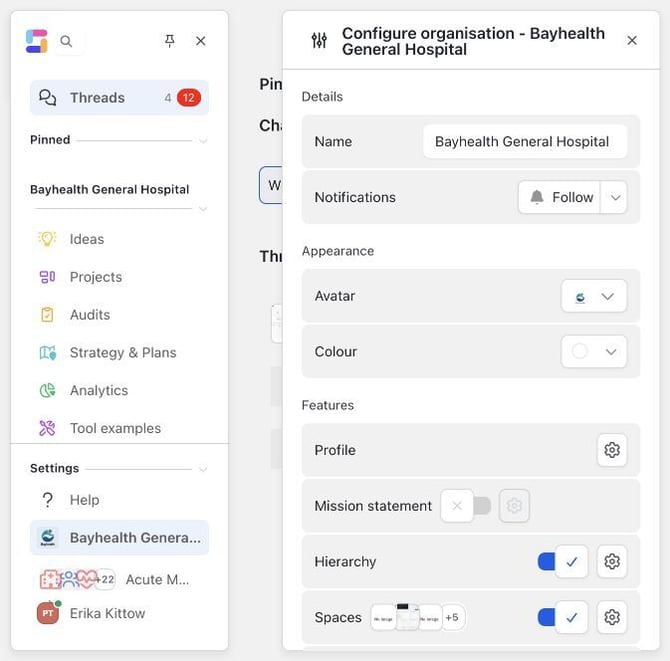
Under Settings, click the name of the organisation you manage. The 'Configure organisation' panel opens. It includes the organisation’s name, appearance settings and feature controls.
 3. 3. Customise the organisation’s appearance
Under Appearance, use:
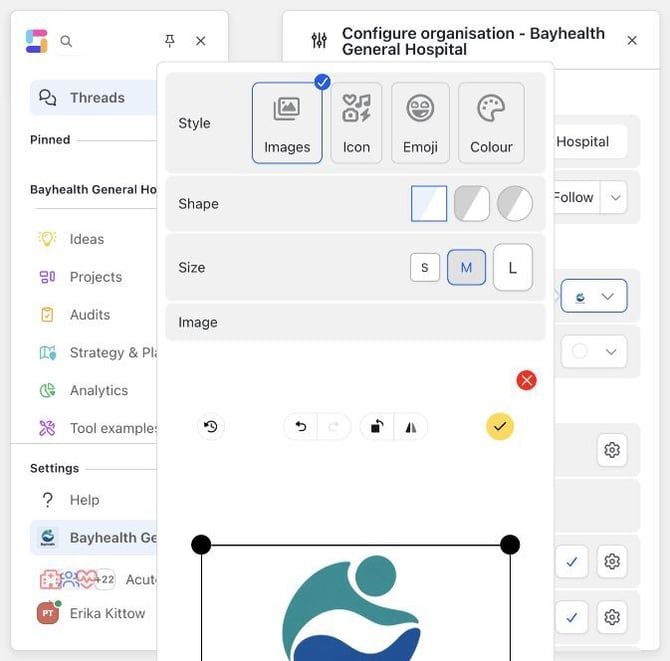
- Avatar to customise the image or symbol that represents your organisation. The picker includes Images, Icon, Emoji and Colour styles, plus shape and size options.
- Colour to choose a colour for your organisation.
For example, use your organisation’s logo as its avatar and choose a colour that matches its branding.
4. Open the organisation’s profile
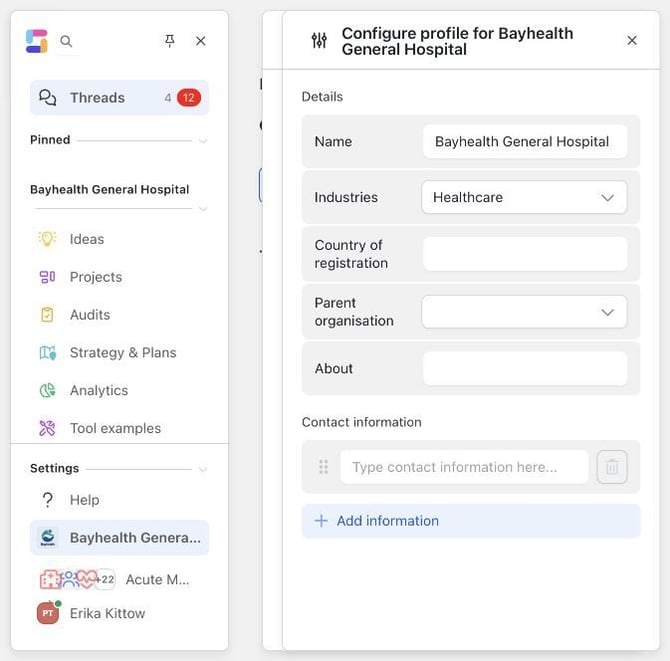
Under Features, find Profile and click the cog icon beside it. This opens Configure profile for [your organisation]
Review or update the details you want to include:
| Field | What to add |
| Name | Your organisation’s name |
| Industries | The industry or industries your organisation works in |
| Country of registration | The country where your organisation is registered |
| Parent organisation | A parent organisation, where applicable |
| About | A short bio introducing your organisation and what it does |
Tip: Keep the About text brief and useful. Explain who you are, who you support and what your organisation does.
5. Add contact details and links
In Contact information, click a field labelled Type contact information here… and enter the information you want to share.
You can include contact details, website addresses and social media links. Click Add information to create another row for each additional item.
6. Add a mission statement
Close the profile panel using the × in its top-right corner to return to Configure organisation.
Under Features, find Mission statement. If it is switched off, switch it on, then use the cog beside it to open its configuration and add your organisation’s mission statement.
Use this statement to explain your organisation’s purpose and the impact it aims to make.
7. Review your details
Check your organisation’s name, appearance, bio, contact details and links for accuracy. When you finish, close the configuration panels using the × in the top-right corner.