
Step 1: Open the card
Open the card you want to review. For a chart example, click the chart itself to open it.
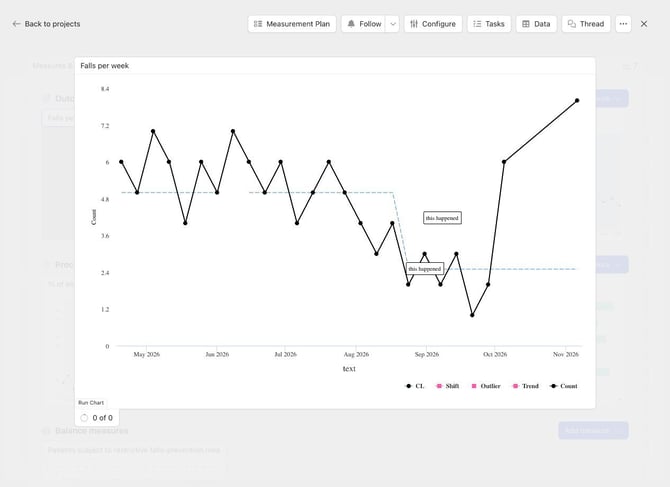
Step 2: Open Configure
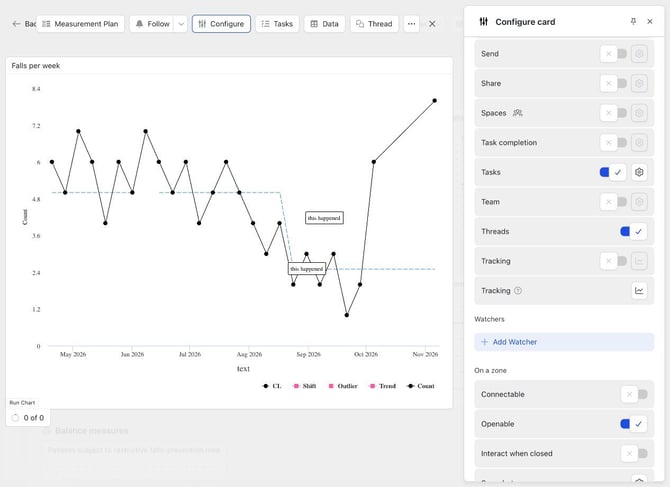
Click Configure in the card’s top toolbar. The Configure card panel opens on the right.
Step 3: Scroll down to Tracking
Scroll down inside the Configure card panel to find Tracking in the Features section.
Click the small chart icon on the right of the Tracking row. This button is labelled View tracking events.
Step 4: Review the tracking log
The Tracking for [card name] panel opens and displays the activity recorded for that card. The number of logs loaded appears above the list.
The list includes these columns:
| Column | What it shows |
| When | The date and time of the activity |
| Event | The type of activity, such as `view' |
| Actor | The user associated with the activity |
| Target | The card or other target associated with the event |
| Space | The associated space identifier |
| Group | The associated group identifier, where available |
| Organisation | The associated organisation identifier |
Click the Refresh tracking logs button—the circular arrow at the top right—to refresh the list.
Step 5: Export the log to CSV
Click Download tracking CSV at the top right of the tracking panel. Look for the file icon marked CSV, beside the refresh button.
This downloads the current tracking list as a CSV file. You can open the file in a spreadsheet application to review or analyse the activity.