
Assign a configured Team role to show a member's responsibilities. You can also add a description with expectations specific to that member.
For background on Team membership and access, see How Teams and permissions work in Simana.
Before you start
- You need Admin access to your organisation's Team.
- The Roles feature must be available and the required role must be configured. See Create and manage Team roles.
1. Open the member's configuration
- In Manage organisation, select the cog beside Team.
- Find the member under Users.
- Select the cog beside their name.
- Check the name in Configure member.
2. Choose a role
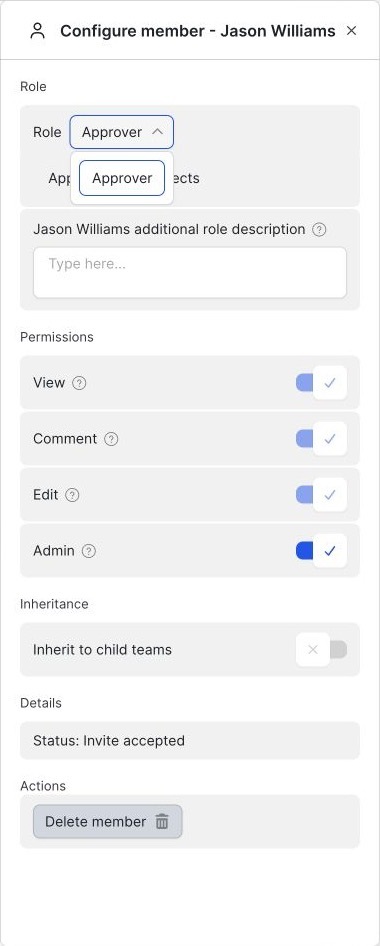
- Under Role, open the role selector.
- Choose the required role from the available options.
- Check the role and description displayed in the panel.
In the Bayhealth example, Jason Williams has the Approver role and the description “Approves new projects”.
Important: Role assignment and permissions are configured separately. Check Change a member's permissions if the member also needs different access.
3. Add member-specific expectations
Use [Member name] additional role description to add context about what is expected of this person on the Team.